Multi-company mode for Sage 50 Accounts (UK & Ireland)
Use our Sage 50 Accounts (UK & Ireland) connector when multi-company mode is enabled.
When multi-companyCompany In Codat, a company represents your customer's business entity. Companies can have multiple connections to different data sources. mode is enabled in Sage 50, a single installed Sage 50 Accounts Connector can syncSync The process of fetching the latest data from a connected data source. Syncs can be triggered manually or run automatically on a schedule. with multiple Sage 50 Accounts companyCompany In Codat, a company represents your customer's business entity. Companies can have multiple connections to different data sources. data files.
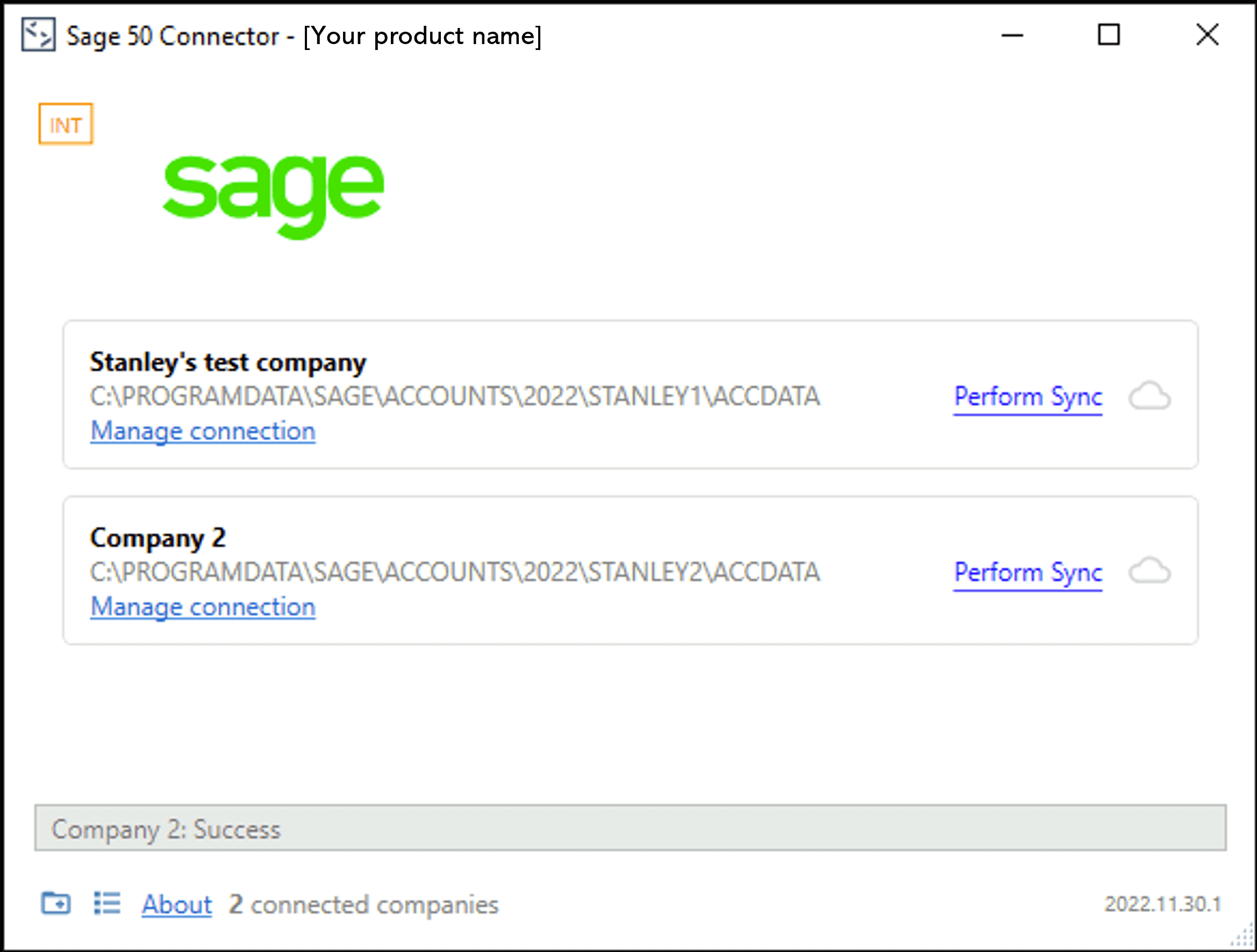
Example of the Sage 50 Accounts Connector with two connected companies:
Setting up multi-companyCompany In Codat, a company represents your customer's business entity. Companies can have multiple connections to different data sources. mode
Ensure you have a connector installed and successfully linked with a companyCompany In Codat, a company represents your customer's business entity. Companies can have multiple connections to different data sources. on a machine. There are two ways in which an additional companyCompany In Codat, a company represents your customer's business entity. Companies can have multiple connections to different data sources. can be added to the same connector:
- When a new LinkLink The authorization flow that allows end users to connect their accounting, banking, or commerce platforms to your application via Codat. URL for a newly created companyCompany In Codat, a company represents your customer's business entity. Companies can have multiple connections to different data sources. is followed on a machine that has a connector already installed.
- By clicking the Add new connectionConnection A link between a Codat company and a data source (like an accounting platform). Each connection represents authorized access to pull or push data from that platform. button on the connector screen and following the on-screen steps:
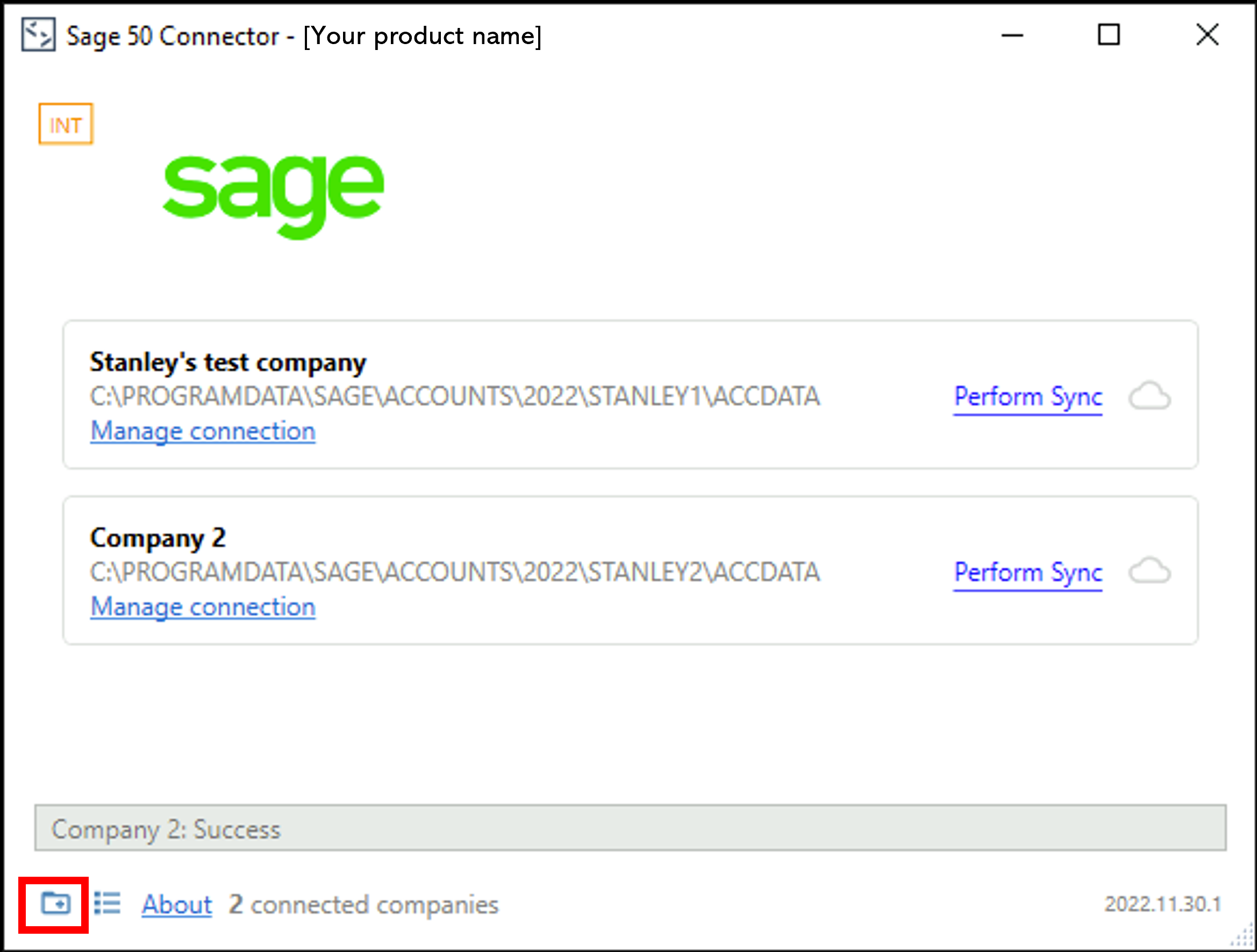
The steps are the same for both of these options:
- Enter the license key
- Verify companyCompany In Codat, a company represents your customer's business entity. Companies can have multiple connections to different data sources. data file
- Select companyCompany In Codat, a company represents your customer's business entity. Companies can have multiple connections to different data sources. data file
- Enter Sage 50 Accounts credentials
- Verify companyCompany In Codat, a company represents your customer's business entity. Companies can have multiple connections to different data sources. data
Rather than a separate connector being installed, the same connector will now handle both companyCompany In Codat, a company represents your customer's business entity. Companies can have multiple connections to different data sources. data file connectionsConnection A link between a Codat company and a data source (like an accounting platform). Each connection represents authorized access to pull or push data from that platform. and syncsSync The process of fetching the latest data from a connected data source. Syncs can be triggered manually or run automatically on a schedule..
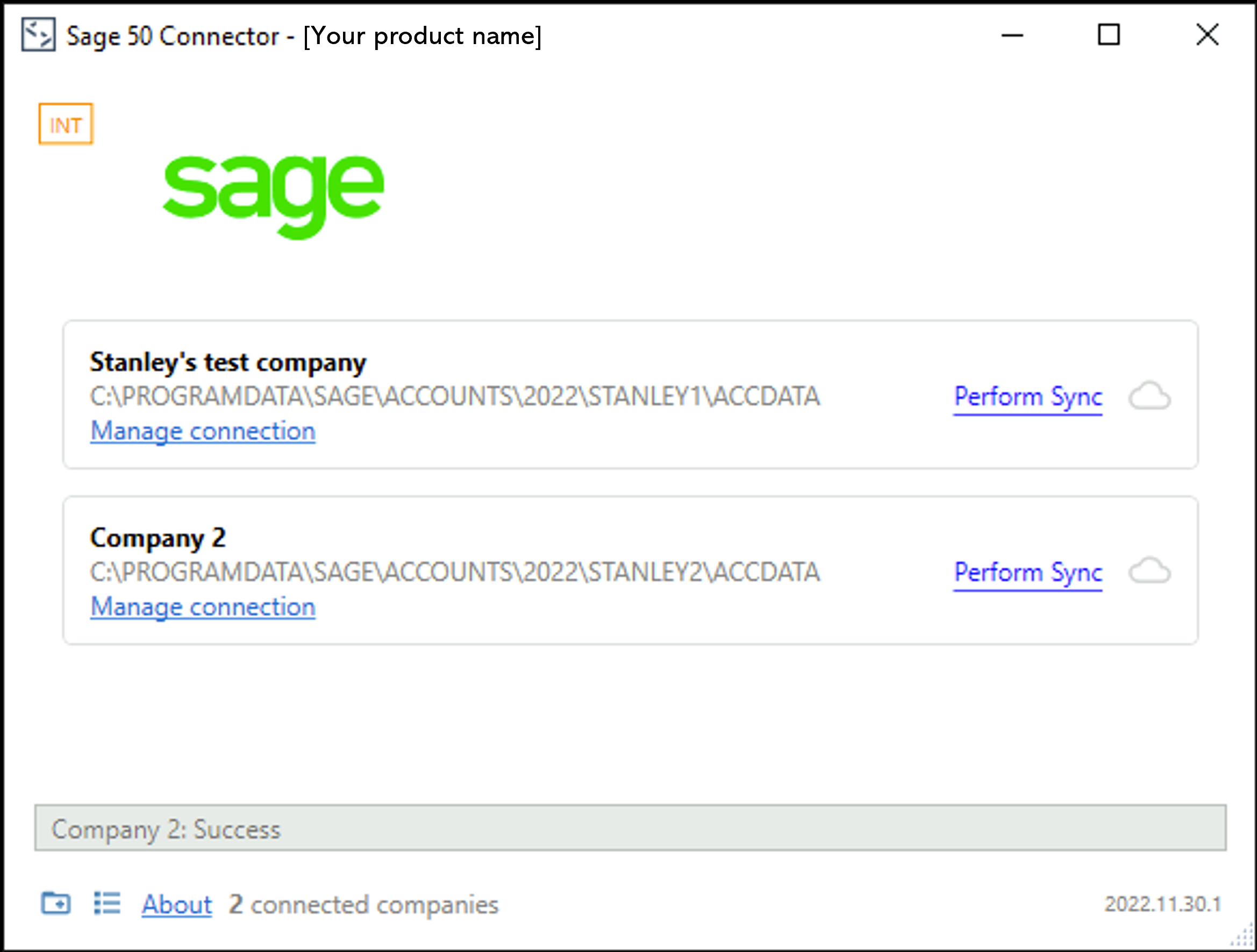
Right-click on the Sage 50 Accounts Connector tray icon (usually found in the bottom-right of the screen) and select Open Sage 50 Accounts Connector. This will display the connector, which is now in multi-companyCompany In Codat, a company represents your customer's business entity. Companies can have multiple connections to different data sources. mode:
Syncing in multi-companyCompany In Codat, a company represents your customer's business entity. Companies can have multiple connections to different data sources. mode
In multi-companyCompany In Codat, a company represents your customer's business entity. Companies can have multiple connections to different data sources. mode you can choose to:
- SyncSync The process of fetching the latest data from a connected data source. Syncs can be triggered manually or run automatically on a schedule. a single companyCompany In Codat, a company represents your customer's business entity. Companies can have multiple connections to different data sources.
- SyncSync The process of fetching the latest data from a connected data source. Syncs can be triggered manually or run automatically on a schedule. all companies from the tray
1. Syncing a single companyCompany In Codat, a company represents your customer's business entity. Companies can have multiple connections to different data sources.
Click the Perform SyncSync The process of fetching the latest data from a connected data source. Syncs can be triggered manually or run automatically on a schedule. button next to the companyCompany In Codat, a company represents your customer's business entity. Companies can have multiple connections to different data sources. you wish to force a manual syncSync The process of fetching the latest data from a connected data source. Syncs can be triggered manually or run automatically on a schedule. of data with:
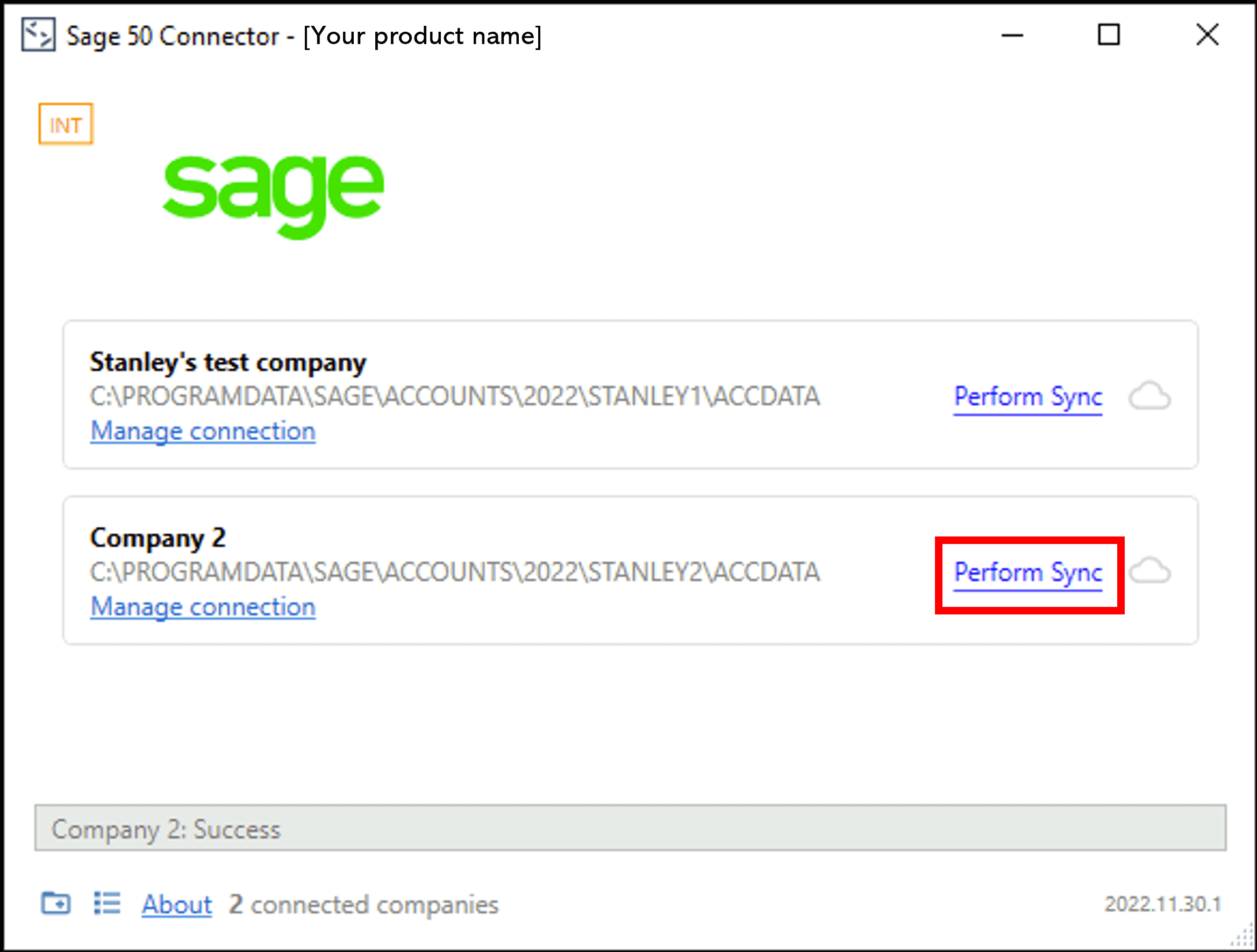
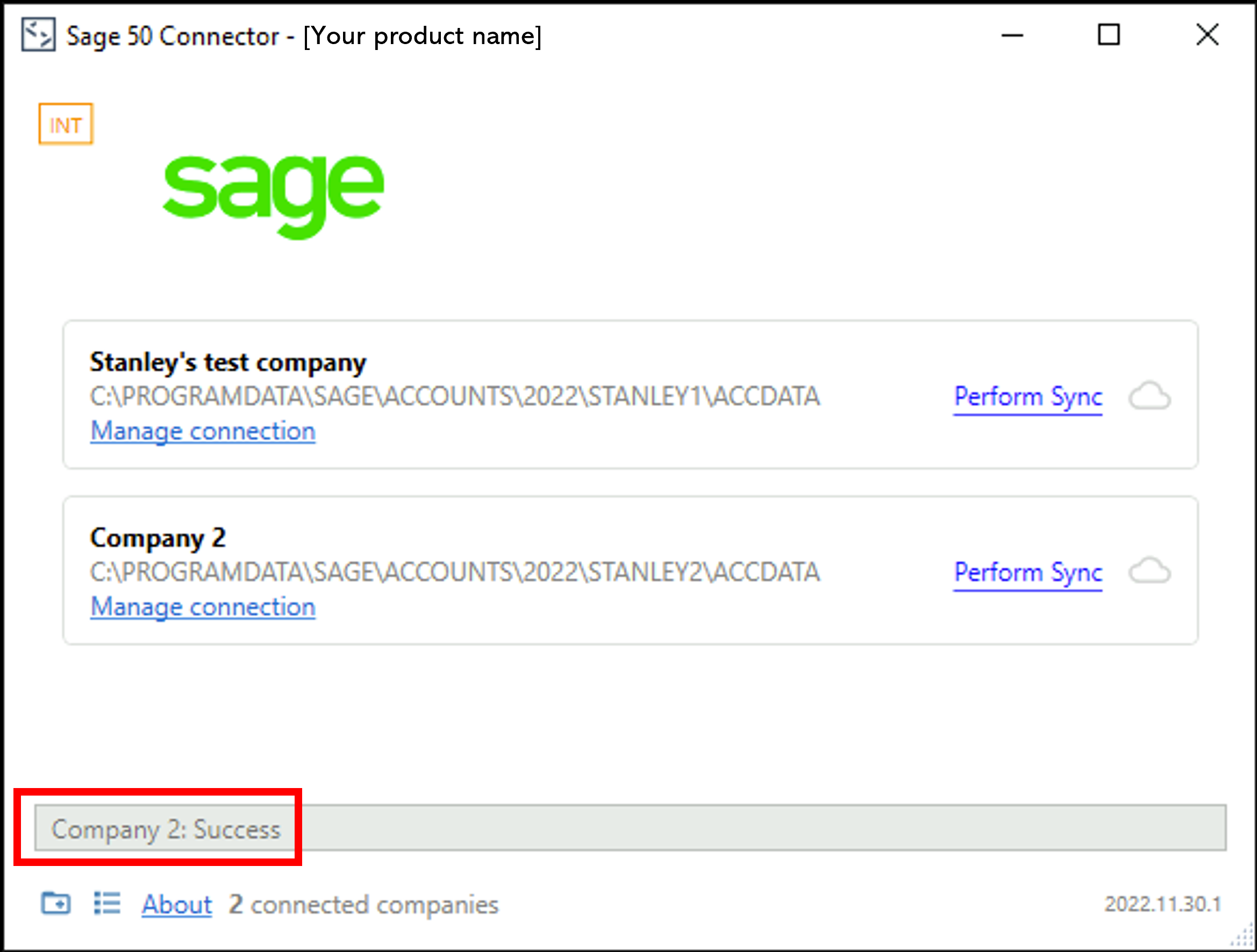
Upon successful syncSync The process of fetching the latest data from a connected data source. Syncs can be triggered manually or run automatically on a schedule., the multi-companyCompany In Codat, a company represents your customer's business entity. Companies can have multiple connections to different data sources. connector view will show the status of the syncSync The process of fetching the latest data from a connected data source. Syncs can be triggered manually or run automatically on a schedule. for the companyCompany In Codat, a company represents your customer's business entity. Companies can have multiple connections to different data sources.:
2. SyncSync The process of fetching the latest data from a connected data source. Syncs can be triggered manually or run automatically on a schedule. all companies from the tray
- Right-click on the Sage 50 Accounts Connector tray icon in the bottom-right of the screen.
- Click Perform data syncSync The process of fetching the latest data from a connected data source. Syncs can be triggered manually or run automatically on a schedule..
- Check that all companies begin syncing.
Cancelling syncsSync The process of fetching the latest data from a connected data source. Syncs can be triggered manually or run automatically on a schedule. in multi-companyCompany In Codat, a company represents your customer's business entity. Companies can have multiple connections to different data sources. mode
When syncing all companies for a connector in multi-companyCompany In Codat, a company represents your customer's business entity. Companies can have multiple connections to different data sources. mode, you can't stop (cancel) any companies that are currently syncing. Currently syncing companies are represented by a blue cloud with a white arrow pointing upwards:
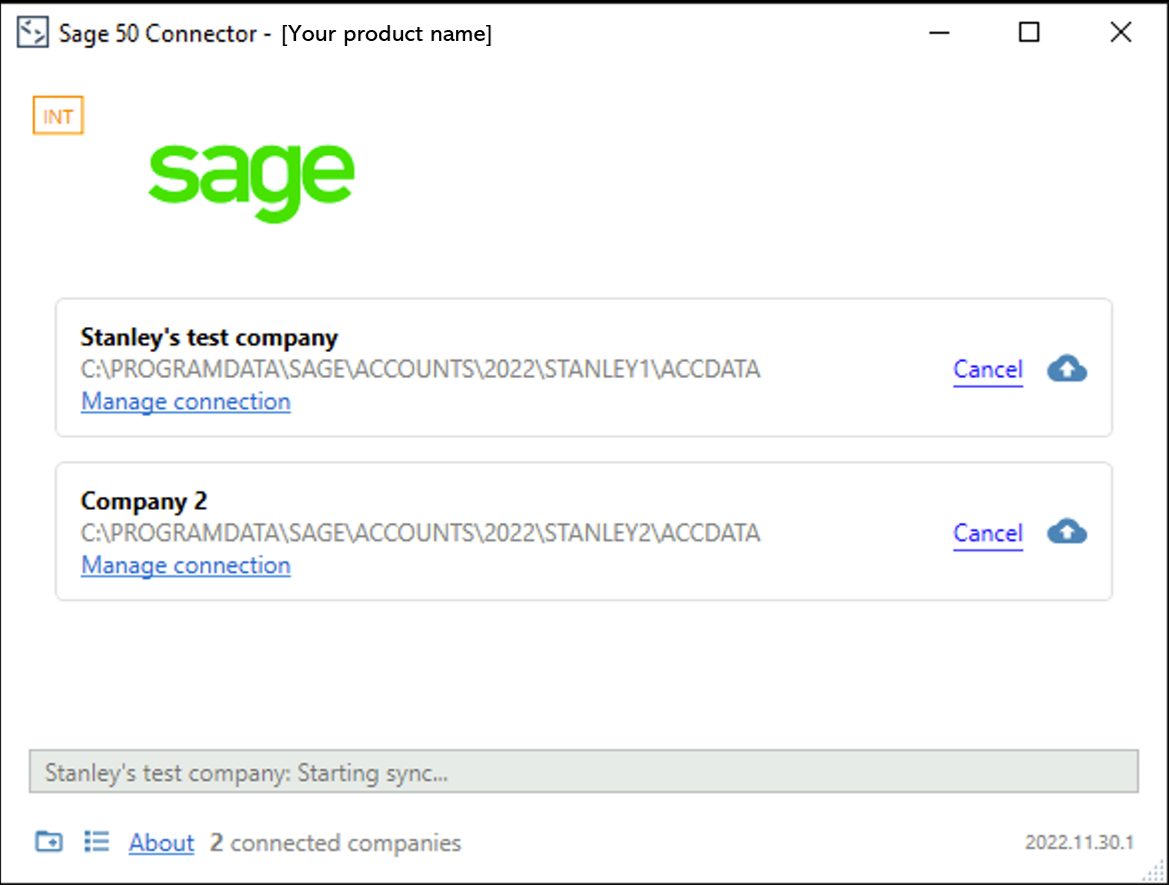
However, you can choose to cancel any companies that are yet to begin syncing but are 'queued' to do so, i.e. pending syncsSync The process of fetching the latest data from a connected data source. Syncs can be triggered manually or run automatically on a schedule.. Queued syncsSync The process of fetching the latest data from a connected data source. Syncs can be triggered manually or run automatically on a schedule. are represented by an empty cloud icon in the multi-companyCompany In Codat, a company represents your customer's business entity. Companies can have multiple connections to different data sources. connector view.
All companies that were due to syncSync The process of fetching the latest data from a connected data source. Syncs can be triggered manually or run automatically on a schedule., but not currently syncing at the time of clearing the queue, will not be manually synced. All companies will then continue to syncSync The process of fetching the latest data from a connected data source. Syncs can be triggered manually or run automatically on a schedule. based on your Data type settings.