Set up the Sage Accounting integration
Explore our API integration with Sage Accounting.
Before you can access data from customers who use Sage Accounting, you need to set up the Sage Accounting integration in the Codat Portal. You'll need to:
- Register a new application on the Sage developer site and retrieve your secure keys.
- Add your application's secure keys to the Codat Portal.
- Enable your Sage Accounting integration in the Codat portal.
Codat currently supports the following versions of Sage Accounting:
- Version 3.1
- Version 3.0
Our integration with Sage Accounting APIAPI A set of rules and protocols that allows different software applications to communicate with each other. Codat provides APIs for accessing financial data from accounting, banking, and commerce platforms. allows you to read data from users with accounts based in the UK, Ireland, Germany, Spain, Portugal, France, USA, Canada, and the UAE.
Codat does not currently support Sage Accounting versions that cover Australia, New Zealand, South Africa, and the Asian market edition (Hong Kong, Singapore, and Malaysia).
If you set up your Codat integration with Sage Accounting before October 19, 2020, you'll notice a change to the credentials page in the Codat portal. The option Client ID, client secret, signing secret and subscription key (APIAPI A set of rules and protocols that allows different software applications to communicate with each other. Codat provides APIs for accessing financial data from accounting, banking, and commerce platforms. v3 - UKI) is selected for your integration.
To continue to use version 3.0, you don't need to make any changes. The integration will continue to work as normal. However, when you linkLink The authorization flow that allows end users to connect their accounting, banking, or commerce platforms to your application via Codat. new companies you must only select the UK or Ireland flags.
To start using version 3.1 with extended coverage for UK, Ireland, and US, Canada, France, Germany and Spain - you'll need to add new credentials as described below. You don't need to remove your existing version 3.0 credentials or relink your existing companies. When new companies do linkLink The authorization flow that allows end users to connect their accounting, banking, or commerce platforms to your application via Codat., they'll have access to all nationalities supported by version 3.1.
Version 3.1 also allows a customer to choose which companyCompany In Codat, a company represents your customer's business entity. Companies can have multiple connections to different data sources. data file they want to linkLink The authorization flow that allows end users to connect their accounting, banking, or commerce platforms to your application via Codat. and syncSync The process of fetching the latest data from a connected data source. Syncs can be triggered manually or run automatically on a schedule. if they manage different accounts from the same machine.
Register your application and retrieve your secure keys
To register your Sage Accounting application, you need to use Sage's development portal.
- Go to the Sage development portal and sign in. If you don't have an account already, you can create one now. Use either your email address or a GitHub account.
- When you're signed in, on the welcome page, select Create app to register your new application.
- Complete the application details.
- In the App Name box, enter a short name for your application. This name is displayed to your customers during the linking process.
- In the Email Address box, enter a contact address for app users.
- In the Homepage URL box, enter your companyCompany In Codat, a company represents your customer's business entity. Companies can have multiple connections to different data sources.'s website address.
- In the Callback URLs box, enter the following URL for Codat:
https://sageone.codat.io/oauth/callback
- Select Save.
The details of your newly registered application are displayed.
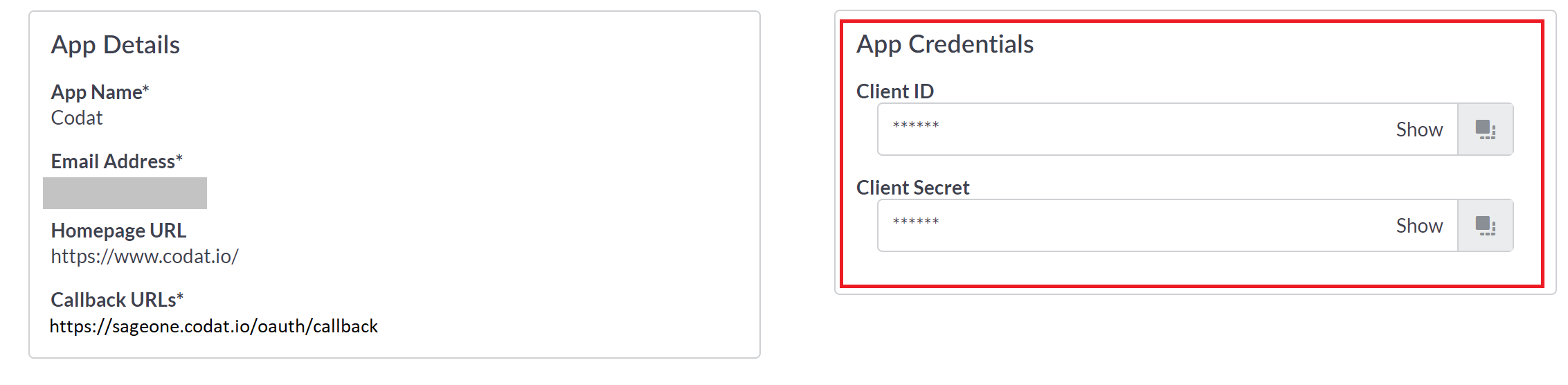
- Either keep this page open in a separate browser tab, or copy the Client ID and Client Secret to a Word document or similar.
Add your application's secure keys to Codat
If you currently use version 3.0 of Sage Accounting, you don't need to remove your existing credentials.
-
In the Codat Portal, go to the Accounting integrations page.
-
Locate Sage Accounting and click Set up. The Integration settings page is displayed.
-
Under What credentials do you have?, select Client ID and client secret only (APIAPI A set of rules and protocols that allows different software applications to communicate with each other. Codat provides APIs for accessing financial data from accounting, banking, and commerce platforms. v3.1 - UKI, US, CA, DE, ES, FR).
-
Enter the values for the Client ID and Client secret from your application in the Sage development portal.
-
Click Save. A confirmation message appears if the settings were saved successfully.
-
The Enable Sage Accounting dialog is displayed. Select whether to enable the integration now or later.
Make sure that your secure keys don't contain any spaces.
Enable the Sage Accounting integration
- In the Codat Portal, go to the Accounting integrations page.
- Locate Sage Accounting and click the toggle to enable the integration.
You can also click Manage to view the integration's settings page, and then enable the integration from there.
Your Sage Accounting integration is now set up.