Use the hosted app
Use the hosted demo app to connect to sandbox data, then view and pay bills. To close the loop, see how payments are reconciled in QuickBooks
🚀 In this section, you will:
- Connect the demo app to QuickBooks Online
- View bills
- Pay a bill
Connect the demo app to QuickBooks Online
-
Open the demo app
.
-
On the Bill Pay start screen, click Get Started.
-
Create a new companyCompany In Codat, a company represents your customer's business entity. Companies can have multiple connections to different data sources..
-
Select the Intuit QuickBooks Sandbox integration.
-
In the login dialog, enter your Intuit account credentials and select any sandbox QuickBooks Online companyCompany In Codat, a company represents your customer's business entity. Companies can have multiple connections to different data sources..
-
The ConnectionConnection A link between a Codat company and a data source (like an accounting platform). Each connection represents authorized access to pull or push data from that platform. Successful screen is displayed once you've connected your accounting software. Click Launch Bills Portal to open the demo app.

For more details about how the app creates a connectionConnection A link between a Codat company and a data source (like an accounting platform). Each connection represents authorized access to pull or push data from that platform. to QuickBooks Online via Hosted LinkLink The authorization flow that allows end users to connect their accounting, banking, or commerce platforms to your application via Codat., see Understand the auth flow.
View bills
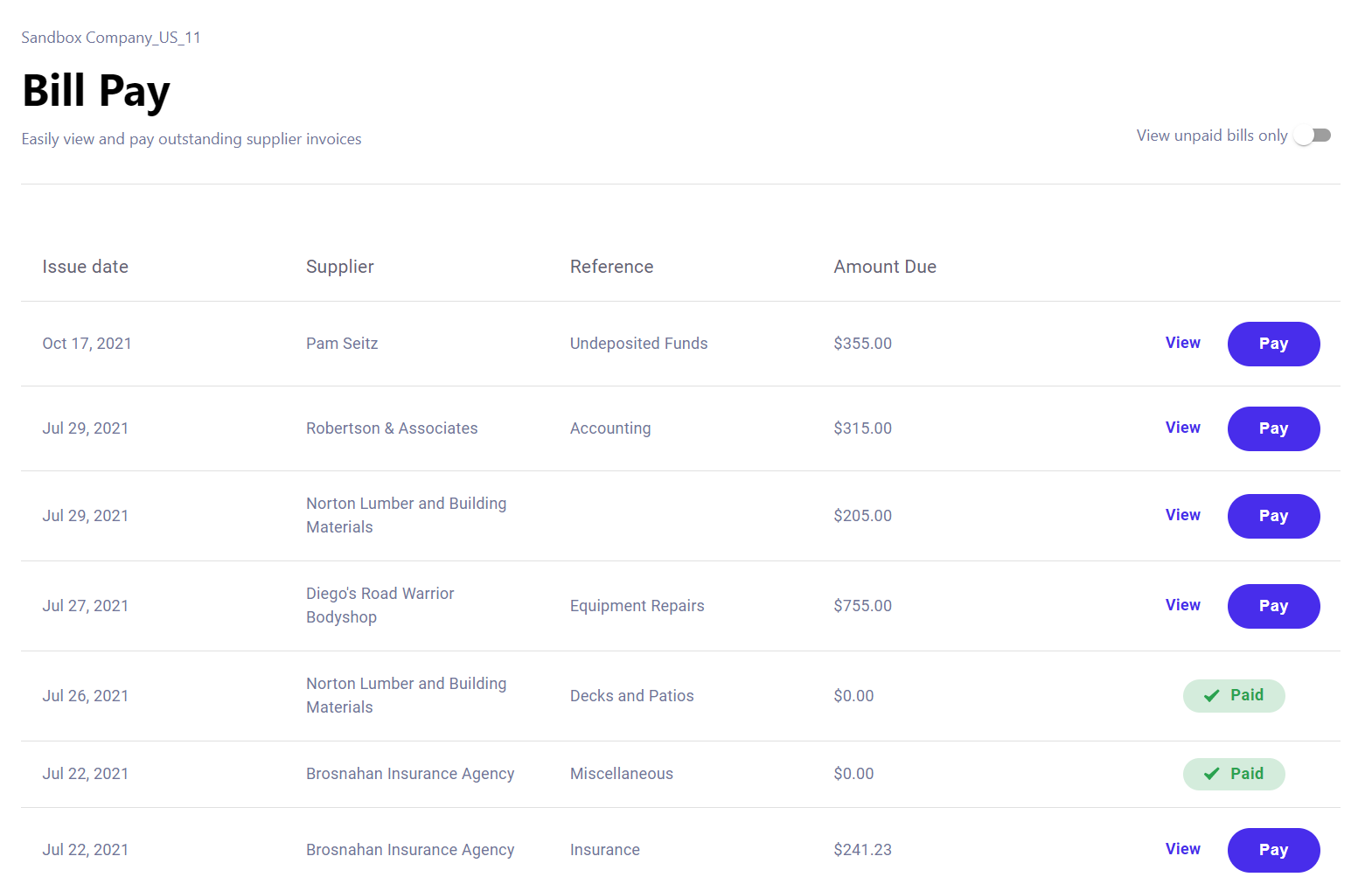
Once you've connected your accounting software, you'll see a table of open and paid bills from the companyCompany In Codat, a company represents your customer's business entity. Companies can have multiple connections to different data sources. you just connected. These are read from your sandbox QuickBooks Online companyCompany In Codat, a company represents your customer's business entity. Companies can have multiple connections to different data sources. and ordered by issue date.
-
If you can only see paid bills, use the View unpaid bills only toggle to filter the list.
-
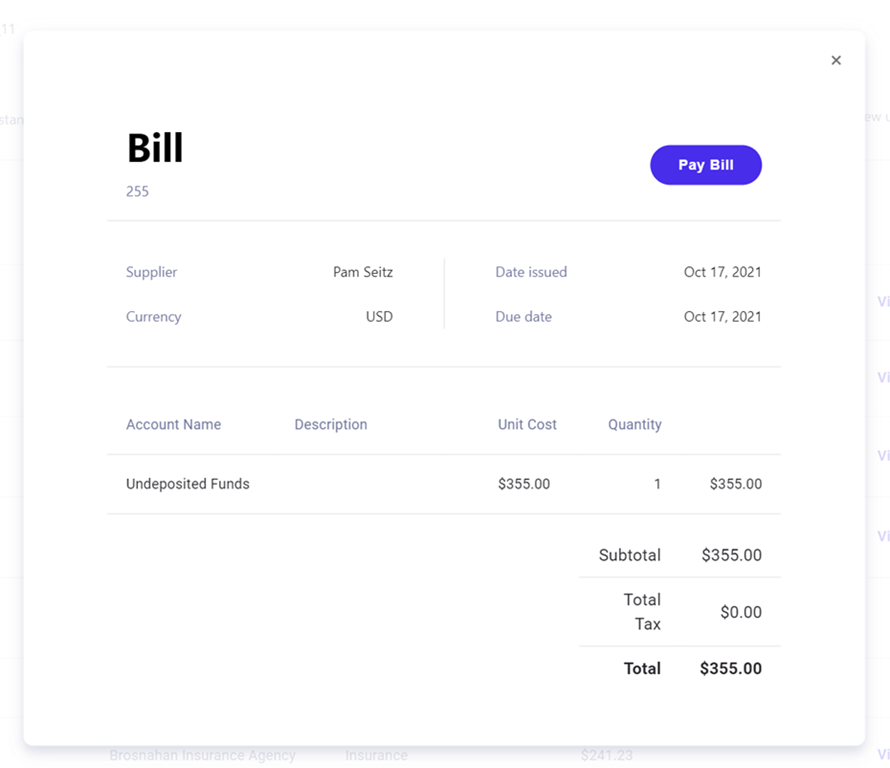
Click View next to an unpaid bill to open the Bill view.
This contains additional information about the bill, including the bill number, due date, and line items (if any).
-
Click Pay Bill to make a payment against the bill.
Pay a bill
Next, you can make a payment against a bill. When you do so, the app automatically writes a bill payment to the accounting software—in this case, QuickBooks Online. The payment is then reconciled against the source bill, which is marked as paid.
-
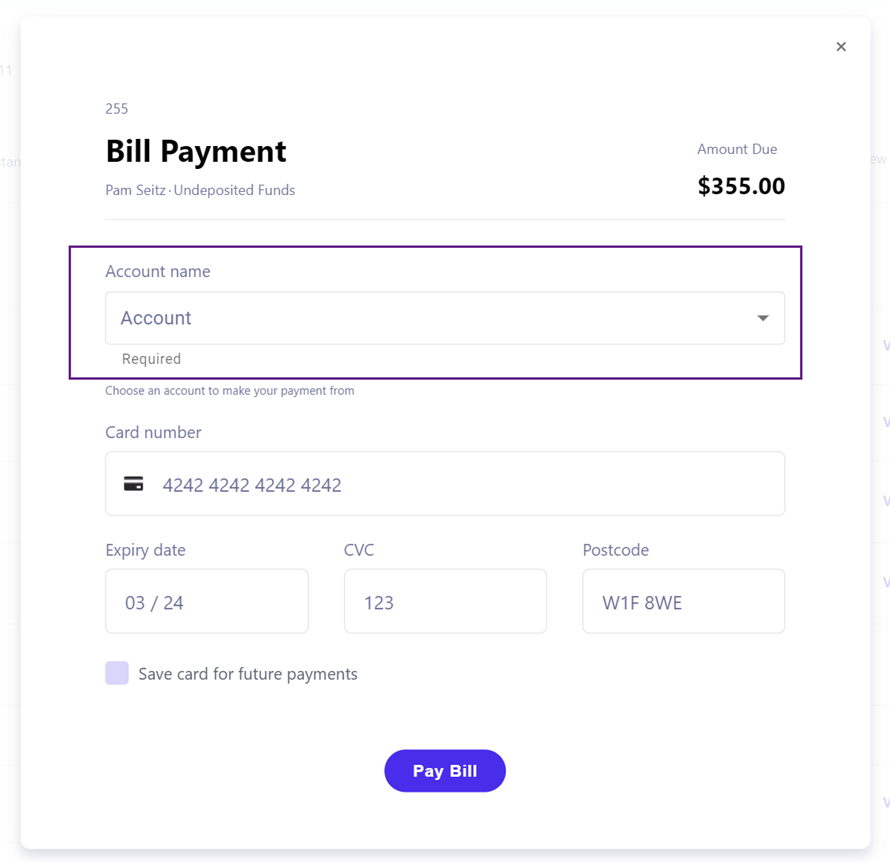
In the Bill Payment view, choose an account from the Account name dropdown. This is the account in QuickBooks Online to which you want to assign the bill payment.
 Accounts displayed
Only banking accounts in the same currency as the bill are displayed.
-
(Optional) Enter mock payment card details.
Card detailsWe've included the card details section to show how Codat can be used with other systems, such as payment providers, to enhance bill payment apps.
-
Click Pay Bill to pay the total amount of the bill.
You've now seen the app in action by viewing and paying bills.
See the payment in QuickBooks
Optionally, you can check that your payment was reconciled correctly in QuickBooks Online. Bill payments are initially in a pending status, but this should change to paid after around a minute.
In Codat, create and update operations are asynchronous, which means that writing data to an accounting software returns a write operation in Pending status. You can read more about CUD operations in Codat. Our webhooksWebhook An automated notification sent from Codat to your application when specific events occur, such as when data syncs complete or connections change status. allow your solution to be notified of a write operation change.
-
Sign in to the Intuit Developer Portal.
-
From the APIAPI A set of rules and protocols that allows different software applications to communicate with each other. Codat provides APIs for accessing financial data from accounting, banking, and commerce platforms. Docs & Tools tab, open the sandbox companyCompany In Codat, a company represents your customer's business entity. Companies can have multiple connections to different data sources. you connected to the demo app.
-
In the sidebar, select Get paid & pay.
-
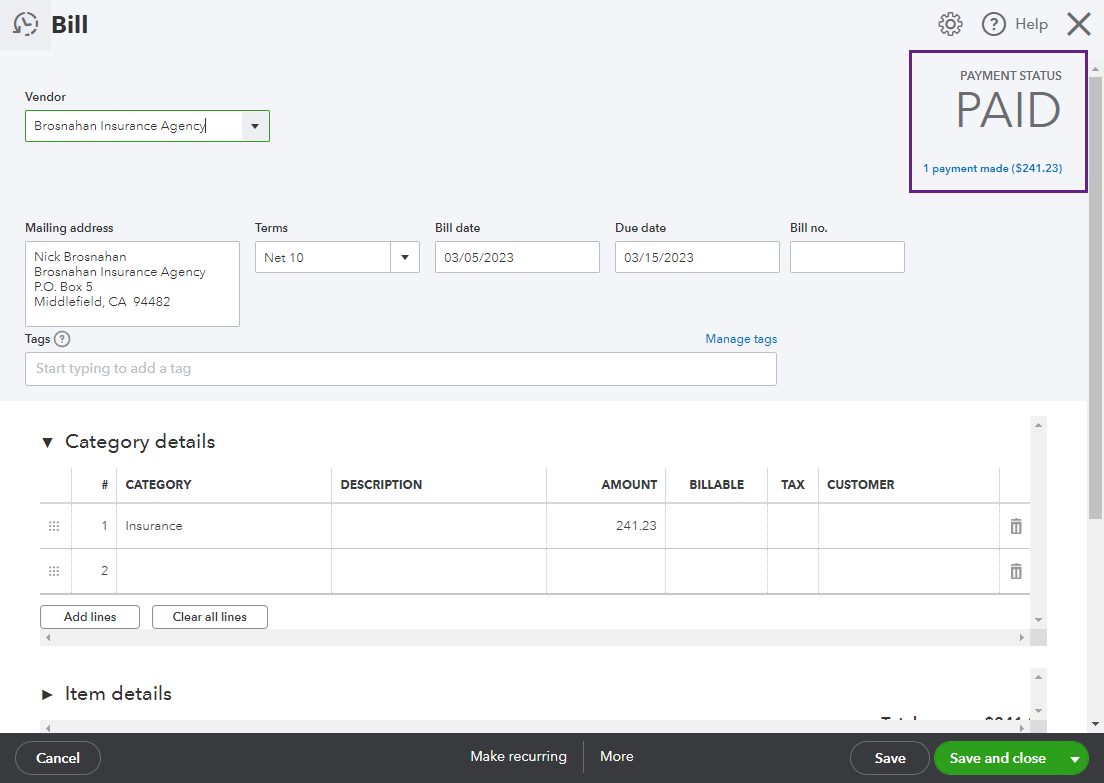
Check the status of the bill you paid in the demo app:
- Select Bills > Paid.
- Select the bill and check the payment status is Paid.
-
Check which bank account the payment was reconciled to:
- Go back to Bills > Paid.
- In the Action column, select Show payments to reveal the payment row.
- Click View details to open the bill payment that corresponds to the bill.
- Check the Bank/Credit account dropdown contains the account you assigned the payment to.

Recap
You've used the demo app to view bills and make a payment. You also checked the source data in QuickBooks Online to understand the payment reconciliation process.
Read next
Now that you've tried out the demo app, you can:
- Run the bill pay demo app locally.
- Learn more about how the demo app works.